
Choosing How to Block a Number
NoDial Editorial / 2026-10-06Every number you add to NoDial gets one of four treatments: blocked always, blocked on a schedule, blocked after a call limit, or — instead of blocking — asked to confirm each time. All four live on the same screen, and you can switch between them whenever you like.
1. The two groups on the screen
Whether you're adding a new number or editing one you already added, NoDial shows the same picker, split under two headings: "Block", with three options that end the call before it connects, and "Don't block, confirm first," with one option that asks you instead of blocking outright. All four are a single choice — picking one turns off whichever was selected before.
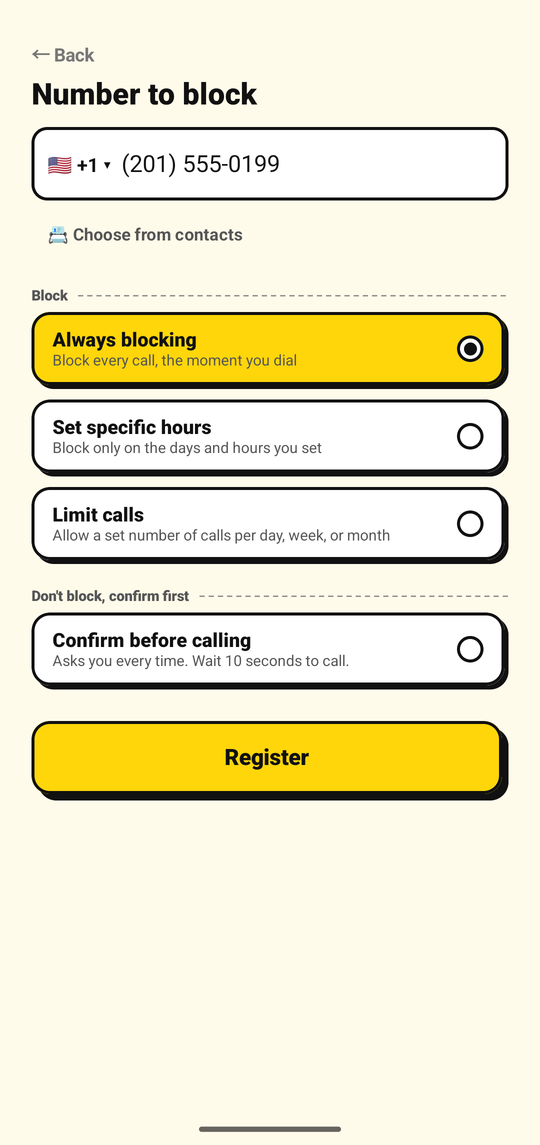
The full picker: "Block" with three modes, then "Don't block, confirm first" with one.
2. Always blocking
Labeled "Always blocking" ("Block every call, the moment you dial"). This is the plain option: every call to that number is blocked, at any time of day, with no schedule or count involved. On the number's card at home, it shows the badge "ALWAYS" and the line "Blocked at all times."
Use this for a number you want to stop calling completely, with nothing to remember or configure.
3. Set specific hours
Labeled "Set specific hours" ("Block only on the days and hours you set"). Pick a start time and an end time (24-hour clock) and which days of the week the rule applies to.
- At least one day has to be selected — NoDial shows "Select at least one day" if you try to save with none checked.
- If the end time is earlier than the start time, NoDial treats it as crossing midnight and labels it "Until the next day (overnight)" — for example 22:00–06:00 blocks from 10pm through 6am the next morning.
- Outside the days and hours you set, the number calls normally — that's by design, not a bug.
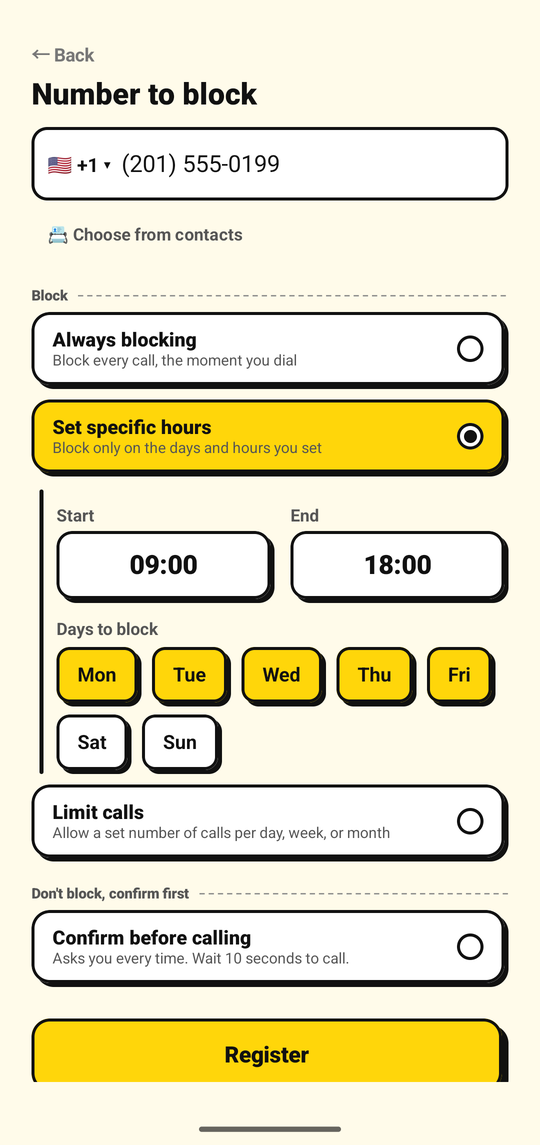
Picking the days and the start/end time for one number.
The card badge reads "HOURS," with a status pill showing "● Blocked" while you're inside the window or "● Allowed" while you're outside it.
4. Limit calls
Labeled "Limit calls" ("Allow a set number of calls per day, week, or month"). Choose a reset period — Day, Week, or Month — and how many calls are allowed in that period (from 1 up to 99).
- Calls within the limit go through as normal; once you've used them all up, further calls are blocked until the next period starts.
- Periods reset on your phone's own clock, not a fixed time zone: a daily period resets at 0:00 each day, a weekly period resets every Monday at 0:00, and a monthly period resets on the 1st at 0:00.
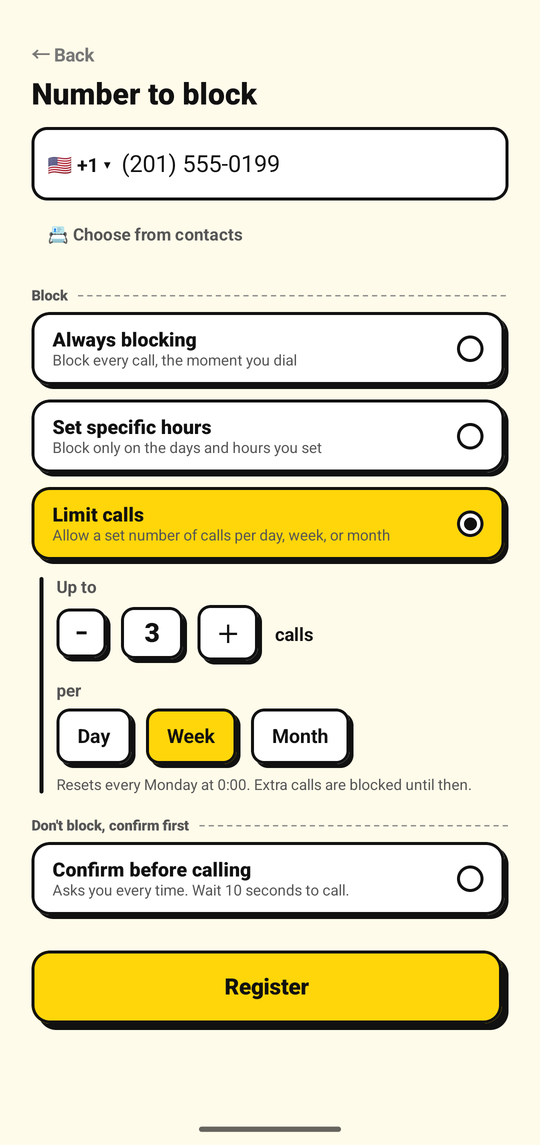
Choosing a weekly limit for one number.
The card badge reads "LIMIT," with a status pill showing "● N left" while calls remain, or "● Used up" once you've reached the limit for the current period.
5. Confirm before calling
Labeled "Confirm before calling" ("Asks you every time. Wait 10 seconds to call."), this is the one option that doesn't block outright — it's under its own heading, "Don't block, confirm first." Every time you dial the number, NoDial stops the call and shows a confirm screen with a 10-second wait before you can go through with it.
This is the softer middle ground between blocking a number completely and not touching it at all — in NoDial's own words: "You can still call if it's urgent. If you want to block someone completely, 'Always blocking' fits better." It works exactly the same way whether you're applying it to one number here, or to all outgoing calls (covered in its own page). The full mechanics — the 10-second wait, the slider, what happens if you decide to call anyway — are covered in Confirm before calling.
6. Changing your mind later
Switching between these four modes for a number — or changing its hours or its limit — always takes effect immediately, with no waiting period. The one-hour wait you may have heard about only applies to turning blocking off for a number completely, covered in Turning off blocking. Picking a different mode is not the same thing as turning blocking off.
To open this picker again for a number you've already added, tap its card on the Home screen — see Editing and correcting a number for the rest of what that screen can do.
- Confirm before calling, in fullThe 10-second wait, the slider, and what the notification does.Read more →
- Editing and correcting a numberChange a rule, add a memo, or fix a mistyped number.Read more →
- Turning off blockingWhy it takes an hour, and how to cancel.Read more →
- Block all outgoing callsThe same four modes, applied to your whole phone.Read more →