
Editing and Correcting a Number
NoDial Editorial / 2026-10-06Tap any number's card on the Home screen to change its rule, add a private memo, or fix a number you typed wrong. Rule changes save immediately. Fixing a wrong number is a separate, limited action — up to 3 times per number.
1. Opening the edit screen
Every registered number appears as a card on the Home screen. Tapping anywhere on a card opens "Edit this number," which has, in order: the number itself, a memo field, the blocking-rule picker, Save and Cancel, and a link at the bottom for fixing the number if you typed it wrong. There's no separate edit icon — the card itself is the entry point.
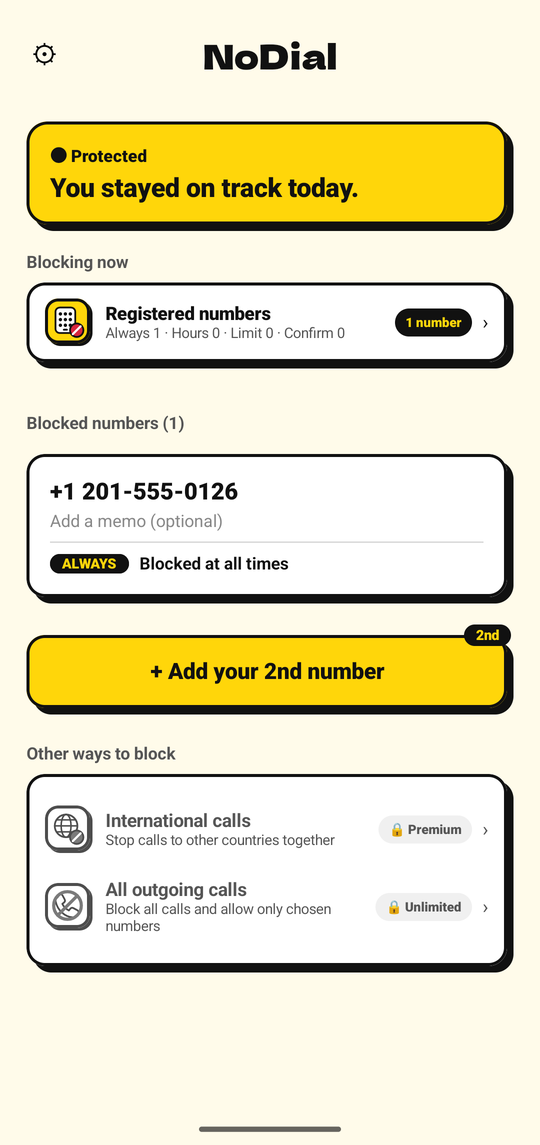
Tap a card on Home to open its edit screen.
2. Changing the rule
The same four-mode picker described in Choosing how to block a number is embedded in this sheet. Tap Save and the change applies immediately — there's no delay for switching modes, changing hours, or changing a limit. If NoDial hasn't finished syncing the number with the server yet, saving a rule change is held back with an error until it has; this is uncommon and usually resolves within moments.
3. Adding a memo
The memo field is labeled "Memo (only on this device)" — NoDial tells you up front that it never leaves your phone. It's capped at 20 characters, with a running count shown as you type. On the card itself, a memo shows as a small "Memo" tag with your text; with no memo, the card shows a faint "Add a memo (optional)" placeholder instead.
Because it's stored only in the app's local data on your device, a memo doesn't survive reinstalling the app or moving to a new phone — see Changing phones.
4. Fixing a number you typed wrong
At the bottom of the edit sheet: "Entered the wrong number?" with a count of how many fixes are left, e.g. "Fix this number (2 left) ›". This is for correcting a mistake in a number you already registered — not for adding an additional number, which is a separate action from Home.
- Tap the link and type the corrected number.
- NoDial shows a final check: "⚠ Final check" — calls to the new number will become physically impossible once you confirm, and this can't be undone. If this is the last fix available for the number, it says so explicitly.
- Tap "Fix to this number" to confirm. Calls to the old number can be made again right away; calls to the new number start being blocked immediately, under the same rule the number already had.
Each registered number can be corrected up to 3 times, total. After the third, the link is replaced with a "Fixed" badge and no further corrections are possible for that entry — you'd need to turn its blocking off (see Turning off blocking) and add a fresh number instead. A new number can't be the same as the one you're replacing, and can't duplicate another number you've already registered; emergency numbers are refused here exactly as they are everywhere else in NoDial.
5. What a number's card shows
Each card's badge and status line reflect its current rule — ALWAYS, HOURS, LIMIT, or CONFIRM — with a status pill for Hours and Limit numbers ("● Blocked" / "● Allowed," or "● N left" / "● Used up"). A number waiting on a plan limit shows a "WAITING" pill with an upgrade button, and can be removed with a small "✕" next to it.
This "✕" only appears on numbers still waiting to become active — there's no delete option for a number that's already blocking. By design, once a number is active, your way to stop it from affecting you is to turn its blocking off (a one-hour process, see Turning off blocking), not to erase it outright.
- Choosing how to block a numberThe four modes this edit screen lets you pick between.Read more →
- Turning off blockingThe one-hour wait, and how to cancel it.Read more →
- Changing phonesWhy numbers and memos don't carry over, but Premium does.Read more →