
Getting Started with NoDial
NoDial Editorial / 2026-10-06Install NoDial, add the number you don't want to call, choose how it should be blocked, then turn on protection. After that, dialing the number ends the call before it rings.
1. Install NoDial
Get NoDial from Google Play — it runs on Android 10 or later. No account and no email address are needed; open the app once it finishes installing.
2. Add a number
- On the home screen, tap "+ Add number."
- Type the number, or tap "Choose from contacts" to pick it from your contact list instead.
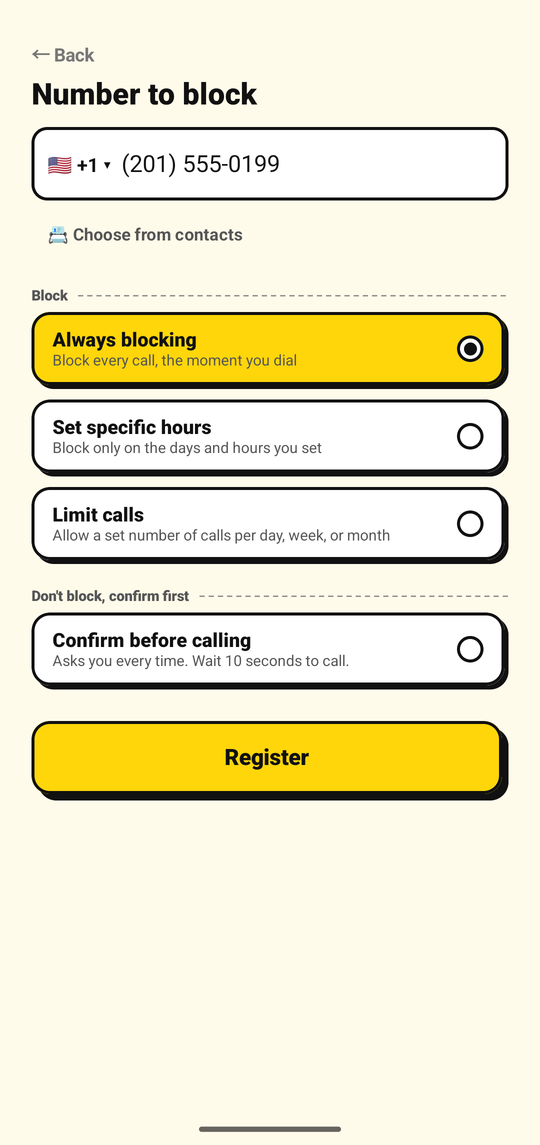
The add-number screen: type a number or choose it from your contacts.
Keep the contact as it is — you don't need to delete or rename it. NoDial also refuses to save common emergency numbers, so there is no way to block one by accident.
3. Choose how to block it
Right after you add a number, pick how it should be blocked. NoDial offers three ways to block it outright, plus a fourth, softer option that asks you instead:
- Always blocking — every call to that number is blocked, at any time of day.
- Set specific hours — block only on the days and hours you set.
- Limit calls — allow a set number of calls per day, week, or month; calls beyond that are blocked until the next period starts.
- Confirm before calling — doesn't block the call, but stops it and makes you wait 10 seconds before you can go through with it.
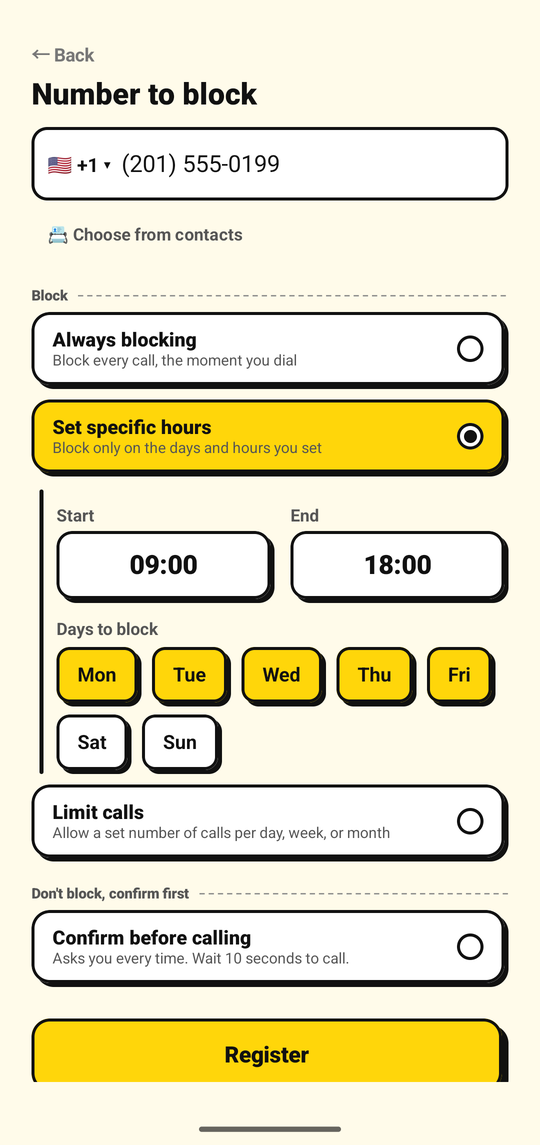
Setting specific days and hours for one number.
See Choosing how to block a number for all four in detail, or Confirm before calling for how that fourth one works.
4. Turn on protection
Saving a number only decides the rule. For NoDial to actually act on calls, you also need to turn call blocking on — this only has to be done once, the first time. If you skipped it while adding your first number, the home screen shows "Enable call blocking (grant permission)." Tapping it, or the "Turn on blocking" button during setup, opens the same request.
- Tap "Turn on blocking."
- On the confirmation screen Android opens, select "NoDial," then tap "Set as default" (or similar — exact wording can vary by phone and Android version).
Android calls this the "call redirecting app" permission (its technical name is the call redirection role). It lets NoDial see each outgoing call as it's placed and end the ones you asked it to end, before they connect. Your numbers never leave the device for this.
If you back out of the confirmation screen, or tap something other than NoDial, nothing breaks — you stay on the same screen in NoDial and can tap "Turn on blocking" again.
5. Test that it works
Dial the number you just blocked — by hand, from a chat, from a shortcut, it doesn't matter how. If protection is on and the mode you chose currently applies (see the checklist below for schedules and limits), the call ends before it rings. A notification titled "Call blocked" ("Tap to see details") appears right after.
Calls from that number, to every other number, texts, and your contacts are all untouched. Only outgoing calls to the number you added, under the rule you chose, are affected.
6. If it doesn't block
- Protection isn't on yet. If the home screen still shows "Enable call blocking (grant permission)," finish the steps in section 4 above.
- You chose "Set specific hours," and you're testing outside those hours. Outside the days and hours you set, the number calls normally — that's by design. Test inside the window, or switch the number to "Always blocking" to check that blocking itself is working.
- You chose "Limit calls." With a limit, the number is only blocked once you've used up the calls allowed for the current day, week, or month — calls up to that count go through as normal. To test a limit, place calls up to the number you set; the next one should be blocked.
- You're calling through an internet-calling app, not your phone's regular dialer. NoDial acts on calls placed through Android's own calling system; a voice call made from inside a messaging or internet-calling app isn't covered.
- You called a different number. Open the number in NoDial and compare it digit by digit with the one you dialed. One wrong digit makes it a different number, and a contact may have more than one number saved. Writing it with or without the country code doesn't matter — NoDial treats both as the same number.
7. Unblock a number
Turning blocking off for a number doesn't take effect right away. It takes effect one hour later, and you can cancel the wait at any time during that hour. Turning blocking back on is immediate.
This one-hour wait is for per-number blocking. Turning off international call blocking or blocking all outgoing calls takes effect immediately instead — turning either one on is always immediate too.
In the app, tapping to turn a number off asks "Unblock this number?" with a button reading "Unblock in 1 hour." Once confirmed, the number's status shows the countdown, and the home screen badge reads "UNBLOCKS IN" the remaining time. You can cancel it at any point before the hour is up. Once it elapses, the number shows as "Unblocked (calls go through)" and calls to it connect normally again.
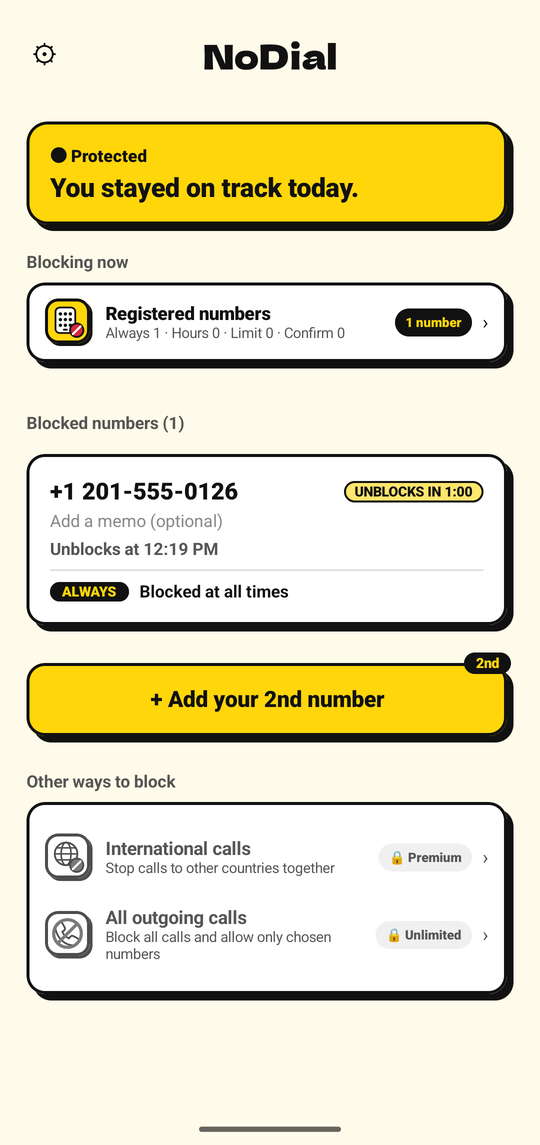
Turning a number off schedules the unblock for one hour later.
Emergency numbers can never be registered in NoDial, and emergency calls are never blocked in any mode.
- Choosing how to block a numberAll four modes, in detail — when to use each.Read more →
- Editing and correcting a numberMemos, immediate rule changes, and fixing a typo.Read more →
- Plans and what each unlocksMore numbers, international blocking, and more.Read more →